 The Mounted Shares View
In the shares view, you can interact with the shares mounted on your system.
Smb4K comes with two alternative views: an icon view and a list view. They are both shown below. The icon view is the default.
The icon view:

The list view:

You can switch between the two views by selecting the appropriate entry in the submenu of the tool bar, in the menu bar under or in the shares view's popup menu.
By default, only your own mounts are displayed. However, you can adjust Smb4K to show all mounts in the configuration dialog.
In the shares view, several actions are defined. They are present in the menu bar under , in the tool bar, and in the popup menu. The following actions are available:
Choose the view mode from the submenu.
The shares are shown in an icon view.
The shares are shown in a list view.
- (Ctrl+U)
Unmount the selected shares. This action is restricted to the shares you mounted, though. So, system mounts or shares that belong to other users cannot be unmounted. If no share is selected in the shares view, this button is disabled.
Read the Unmounting Shares section for more details.
- (Ctrl+N)
Unmount all your shares at once. System mounts or shares that belong to other users cannot be unmounted with this action. If you have not mounted any shares, this button is disabled.
Read the Unmounting Shares section for more details.
- (Ctrl+B)
Add bookmarks to the selected shares. This action is disabled if no share is selected.
Read the Adding Bookmarks section for more details.
- (Ctrl+C)
Open the custom settings editor for the selected shares.
Read the Custom Settings section for more details.
- (Ctrl+Y)
Synchronize a share with a local copy or vice versa. This action is only enabled if the program rsync(1) is installed and a share is selected.
- (Ctrl+L)
Open the base folder of a share in Konsole. This action is useful if you need to run shell scripts, etc.
- (Ctrl+I)
Open the contents of a share in the default file manager.
The popup menu includes all the actions that can be performed on a mounted share:

It can be opened by clicking the mouse button.
The tooltips provide information about the remote location of the share, the mountpoint, the user and group, the login, the file system, the disk usage, and the free disk space. If the share is inaccessible, these values are marked as unknown.
Tooltips are enabled by default. You can deactivate them in the configuration dialog.
Smb4K periodically checks all mounted shares if they are still accessible. If an inaccessible share is encountered, it will be marked with a lock symbol and you will not be able to open or synchronize it anymore. Unmounting and adding a bookmark is still possible.
Note
The program might freeze for a short period of time due to an inaccessible share. It will recover afterwards.
Shares owned by other users are only shown if you adjusted the settings to display them. You are not allowed to unmount these shares.
A mounted share is indicated by a small, corresponding symbol in the lower corner of the folder icon. This changes to a lock for shares that are not accessible. For shares that belong to another user, it is replaced by a warning sign.
Smb4K supports drag-and-drop in the shares view. To transfer or link data to a share, drag the files and/or folders over the share icon and drop them there. A popup menu will open asking you what to do. Choose the appropriate action (copy, move or link).
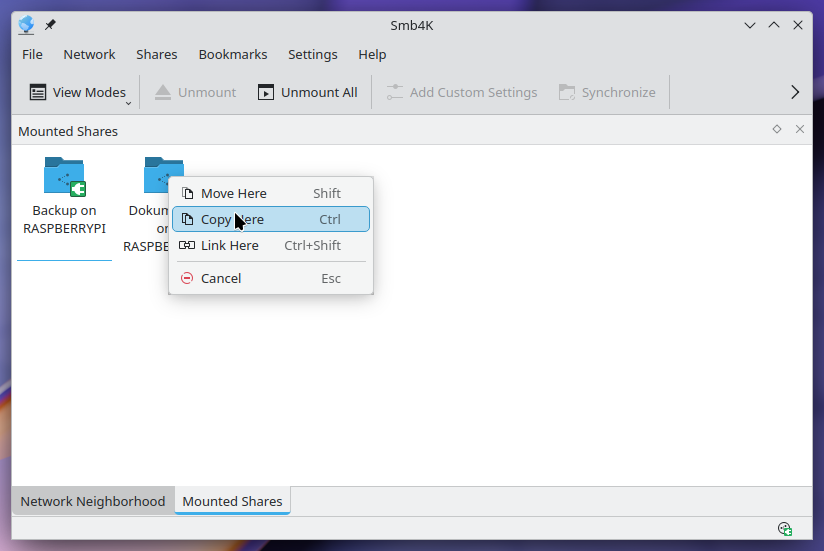
To avoid the popup menu, press the Shift key for moving, the Ctrl key for copying and the Ctrl+Shift key combination for linking while dragging and dropping. The transfer will only be successful if the share was mounted with read and write permissions.
You can also drag and drop the whole share to the desktop or to another application (e.g. Dolphin). Again, a popup menu will open asking you, what to do. When choosing the appropriate operation, please remember that under most circumstances moving and linking the share might not be a good idea.
You can unmount either a selection of your shares by using the (Ctrl+U) action or all of them with the (Ctrl+N) action.
Note
Please note that you can only umount the shares you mounted. System shares or shares that were mounted by other users cannot be unmounted.
Smb4K provides the ability to force unmounting of shares (Linux® only). This can be useful with inaccessible shares that cannot be unmounted the normal way. To enable this feature, you need to modify the settings in the configuration dialog. Smb4K will then perform a lazy unmount on inaccessible shares.
After a successful unmount process, the user is notified. If unmounting fails, a notification with the returned error message is shown.
For selected shares, custom settings can be defined. Click the (Ctrl+C) action to open the Custom Settings dialog. Read the Custom Settings section for more details.
The (Ctrl+Y) action opens the synchronization dialog. It offers the mount point of the share as the source and a path below the synchronization prefix as the destination. To update the data on the share, you can swap the destination with the source by clicking the button.

Clicking the button starts the synchronization and a progress dialog is shown that shows details about the transfer.

The synchronization can be canceled at any time by pressing the stop button to the right of the progress bar.
Smb4K provides two possibilities to open a mounted share:
Open a share with Konsole. You can open the mounted share in Konsole by selecting the (Ctrl+L) action. This is useful if you need to run a shell script on the share or do something similar.
Open a share with the default file manager. You can open the share in the default file manager (e.g. Dolphin) by clicking the share icon or by selecting the (Ctrl+I) action.
Note
If a share is marked as inaccessible, it cannot be opened.