 The System Tray Widget
When Smb4K is started, a status icon appears in the system tray. Its status is set to active if either workgroups or domains were discovered in your network neighborhood or remote shares were mounted. Otherwise it is set to inactive.

You can minimize or restore the main window by left clicking the status icon. A right click brings up a popup menu that contains several items allowing you to work with the mounted shares, manage or mount your bookmarks, select the profile you want to use, and configure Smb4K without opening the main window.
The menu lists all mounted shares and some actions that can be performed on them.

Unmount all your shares at once. System mounts or shares that belong to other users cannot be unmounted with this action. If you have not mounted any shares, this button is disabled.
For each mounted share you can open a submenu that contains the following entries. Read the shares view's Actions and Popup Menu section for further information.
Unmount the share. This action is disabled for shares that do not belong to you.
Add the selected share to the bookmarks.
Open the custom settings editor for the selected share.
For further information read the section about Custom Settings.
Synchronize the mounted share with a local copy or vice versa.
For further information read the section about Synchronization.
Open the base folder of the share in Konsole.
Open the contents of the share in the default file manager (e.g. Dolphin).
The menu contains all your bookmarks. Read the Bookmarks section for further information.
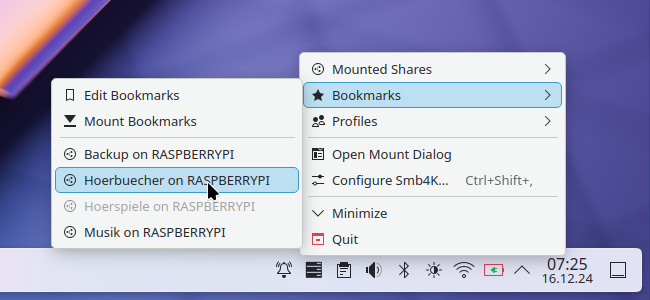
Its layout is as described here, except that the menu item is not present.
In the menu, all your profiles are listed.

You can activate a profile by clicking it. The profiles can be managed in the configuration dialog.
These are the four additional menu entries:
Open the mount dialog.
Open the configuration dialog. See the section about the configuration for a full list of available settings.
Hide (minimize) or show (restore) the main window. The text shown depends on the state of the main window.
- (Ctrl+Q)
Quit the application.