 KMyMoney Settings
The settings described in this chapter modify the behavior of KMyMoney, allowing you to customize it to meet the needs of your unique financial affairs, and to modify its look and feel to match your personality. These settings can be changed through the → menu item or by using the keyboard shortcut Ctrl+Shift+,. In order for any changes to take effect the button must be clicked.
On the left of the Configure or settings dialog is a list of icons and labels, each representing a particular area of the program. When you click one of those icons, the right part of the dialog will display controls for configuring that area of the program, often divided into several tabs.

- Autosave options
An autosave file is just a copy of your data file. The main point of these is that they are automatically created, according to the configuration settings, so you do not need to remember to take any action. Any autosave files created will be in the same directory as the data file currently open.
Checking the Autosave periodically box instructs KMyMoney to automatically save your file at the interval defined by the minutes field. The default value is 10 minutes. You can change this setting from 0 (autosave immediately after entering a transaction) up to 60 minutes.
Checking the Autosave when file is modified upon close box instructs KMyMoney to autosave your file when the program is closed, but only if any changes have been made. You also have the option upon closing the program to backup your KMyMoney file.
The Number of backup to keep can be set from 0 (Off) up to 20. The autosave files will be stored in the same folder as the main file. If your data file is MyFinances.kmy, then when an autosave file is created, it will be called MyFinances.kmy.1~. Any existing autosave files will have their number increased by 1, up to the specified number.
- Fiscal Year
KMyMoney allows you to specify a fiscal year different from the calendar year. To do so, enter the day and month on which your fiscal year begins. This value is used for budgets and some reports.
- External programs
This setting does not directly affect the operation of KMyMoney, but provides a convenient way to launch any external utility, such as an advanced calculator. The first step is to enter the full path to your chosen program in the Calculator text box.
There is currently no direct menu item to launch the calculator, or whatever external program you have set. There are then two ways to launch the program.
First, you can use menu item to place the Calculator icon on the Toolbar. Then, when you click that icon on the Toolbar, KMyMoney will launch the selected application.
Second, you can use menu item to set a custom keyboard shortcut. (The entry is under KMyMoney/Calculator in that list.) You can then use that shortcut to launch the application.
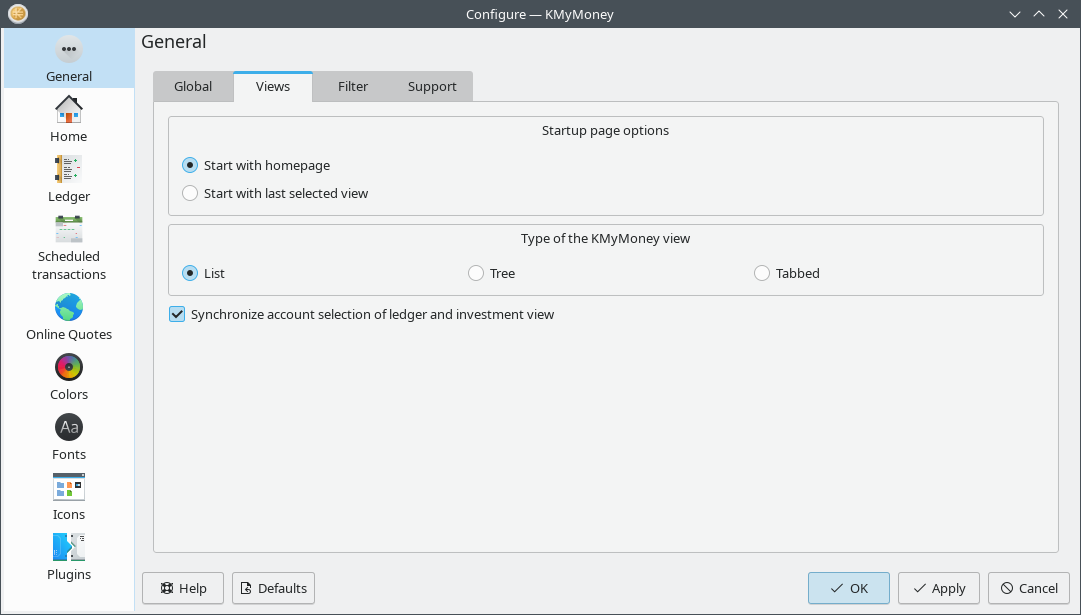
- Startup page options
When KMyMoney starts up, this option indicates whether to start with the Home View (Start with homepage) or with the view displayed when the program was last closed (Start with last selected view.)
- Type of the KMyMoney view
This lets you select one of three layouts for the View Selector, where you choose Selecting List or Tree view, the icons and their labels will be located at the left side of the window. The List view displays larger icons above the name of each view, while the Tree view has smaller icons to the left of the names. The Tabbed view locates the icons and labels in tabs across the top of the window.
- Synchronize account selection of Ledgers View and Investments View
If this option is selected, the accounts displayed in the Ledgers View and Investments View will be synchronized, meaning if you change the account displayed in one of the views, and then switch to the other view, the information for the same account will be displayed. This increases the efficiency of navigating between these 2 views. If it is not selected, selecting either of those views will show the same account previously selected in that view, regardless of the account selected in the other view.

- Accounts / Categories
Checking the Do not show unused categories box hides unused categories in the Categories View. A hidden category is still available should a transaction require it. By typing a hidden category in the ledger it will become available for use.
Equity accounts are used to track individual equities or investments held in an Investment Account. These should not be confused with the top level Equity group of accounts, which includes the account(s) which contain the opening balances for other accounts. By default, equity accounts are hidden in the Accounts View. Checking the Show equity accounts box will display the equity accounts in the Accounts View.
By default, Categories are hidden in the Accounts View. Checking the Show categories in the accounts list view will display the Categories in the Accounts View.
Checking the Do not show zero balance equities box will remove any zero balance equity accounts from appearing in the Accounts View.
- Schedules
Checking the Do not show finished schedules box hide all finished schedules from appearing in the Scheduled transactions View.
- Transactions
Transactions prior to the date in the Do not show transaction prior to field will not be displayed in the Ledgers View. This can be useful if your data includes many years of transactions; setting this to one or two years ago hides older transactions.
Setting this option to January 1, 1900 (the default value) is a good way to debug date-related data import problems, in case some dates were erroneously very far in the past.
Checking the Do not show reconciled transactions box will filter transactions by reconciliation state. Transactions that are marked as Reconciled will not be shown in the Ledgers View.

- Logging
KMyMoney can create a log file when it imports data. This can be useful for troubleshooting problems, but it is important to be careful, as these log files can contain sensitive data, such as usernames and plain-text passwords, as noted in the dialog.
For any logging to take place, specify the path to the directory where logs will be created in the Log path field. You can also click to the right of the field, and use the file chooser dialog to navigate to the chosen directory.
If you check the Log imported statements box, whenever KMyMoney imports data, it will save a file called “
kmm-statement-yyyy-mm-ddThh-mm-ss.sss.txt” in the specified directory. This file is an XML file with all the data just imported.If you check the Log OFX transactions box, whenever KMyMoney uses OFX direct connect to retrieve transaction data, it will log all the interactions it has with the remote OFX server. It will append these to a file called
ofxlog.txtin the specified directory. As mentioned above, this file is likely to contain account and user names and plain-text passwords.