 Game Configuration
Table of Contents
To open the configuration dialog use the → menu item, on Apple Mac OS X use the → menu item, or you can use the button in the toolbar.
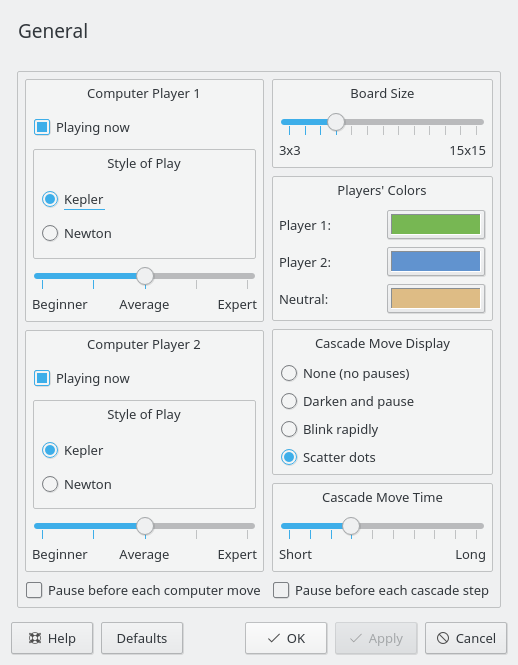
The Cascade Move Display and Cascade Move Time panels control the optional animation display when a cube reaches its maximum and spills over into neighboring cubes, possibly starting an extended cascade of moves. It is easiest at first to use the “Scatter dots” animation and a long move time. That is the best way to follow the progress of cascade moves. The two Pause check boxes let you step through animations and computer moves at your own pace.
The Computer Player 1 and 2 panels control the style and level of each computer player's play and whether that player should actually play or just provide hints to human player 1 or 2.
- Playing now
Sets Computer Player 1 or 2 to be actively playing or just assisting a human player with hints. Normally you would set the computer to play one player and you would play the other, but you can have two human players or two computer players and just watch. Player 1 always starts first.
- Style of Play
Sets Computer Player 1 or 2 to play as Kepler or Newton. Kepler chooses moves by the same method as earlier versions of KJumpingCube. Newton uses a different method.
- Computer Skill
Lets you choose a computer player's playing skill from a slider. This decides how clever the computer opponent will be.
You can choose any of five levels, ranging from Beginner, through Average to Expert.
- Board Size
Lets you choose the size of the play area.
Use the slider to select a value between 3x3 cubes and 15x15 cubes. The range 5x5 to 9x9 is the most convenient. Below 5x5 it is very hard to beat the computer. Above 9x9 games can become rather long.
- Players' Colors
Choose a color for each player and for the neutral cubes.
- Cascade Move Display
Choose an animation style for when a cube reaches its maximum and expands into neighboring cubes, possibly starting a cascade of such moves and covering a large area of the board.
Use the radio buttons to select from None (no pauses), where the whole move is displayed instantaneously; Darken and pause, where each overloaded cube darkens until it is time for it to expand; Blink rapidly, where each overloaded cube darkens at first and then blinks rapidly when it is time for it to expand and Scatter dots, where each overloaded cube darkens at first and then fires dots into neighboring cubes when it is time for it to expand.
- Cascade Move Time
Use the slider to select from a range of times (Short to Long) to be spent on animations. The times depend a little on the type of animation, but can range from 0.15 seconds to 1.5 seconds for each stage of a cascade move.
- Pause before each computer move
If this check box is selected, computer players will pause before they start a move, until you click to resume. This is to help you follow the action, especially if you are a new player or studying a computer versus computer game.
- Pause before each cascade step
If this check box is selected, the animation of cascade moves will pause between steps, until you click to resume. This is to help you observe such a move as it spreads out over the board.