 Amarok on other platforms
Amarok is intended for the KDE desktop, but it works on other platforms as well. Although it takes some effort, Amarok can run on these configurations:


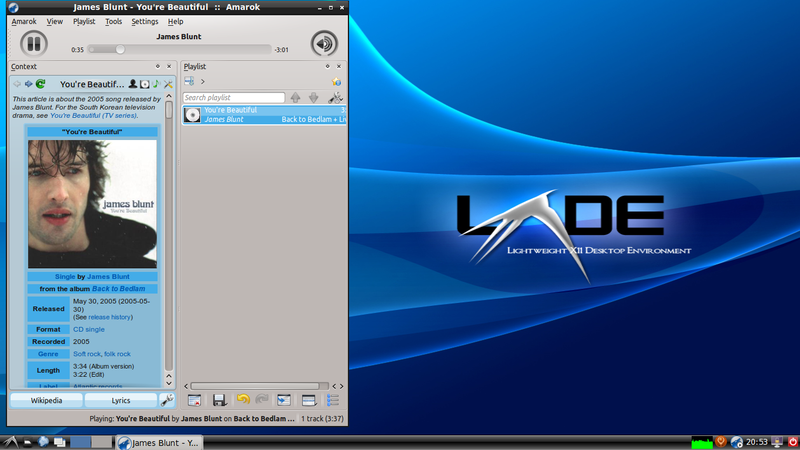
Although Amarok is one the most well-known KDE applications, it can run on other desktop environments too.
This section shows how Amarok can be used on non-KDE Linux® desktops. These are examples; there may be more.
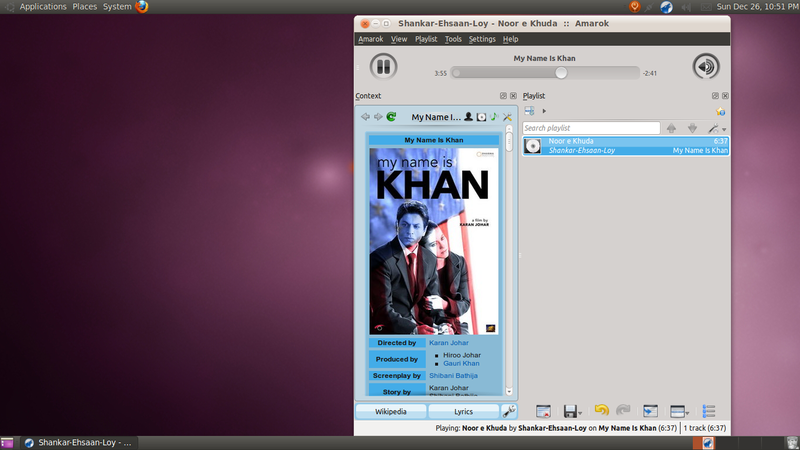
To configure the proxy for Amarok on GNOME, modify and add this to ~/.kde/share/config/kioslaverc
[Proxy Settings][$i]
ProxyType=1
httpProxy=http://username:password@proxyserver:port/
httpsProxy=http://username:password@proxyserver:port/
ftpProxy=http://username:password@proxyserver:port/
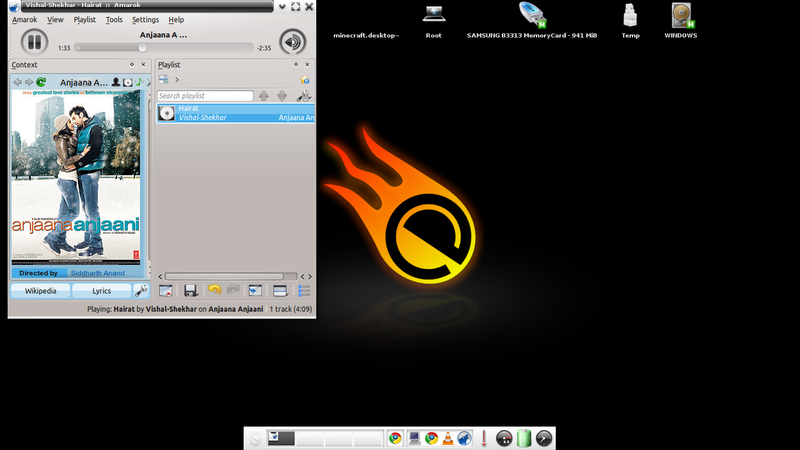
The Amarok systray icon does not work by default with E17. So, one should disable the Show tray icon from General Options in Amarok's preferences.
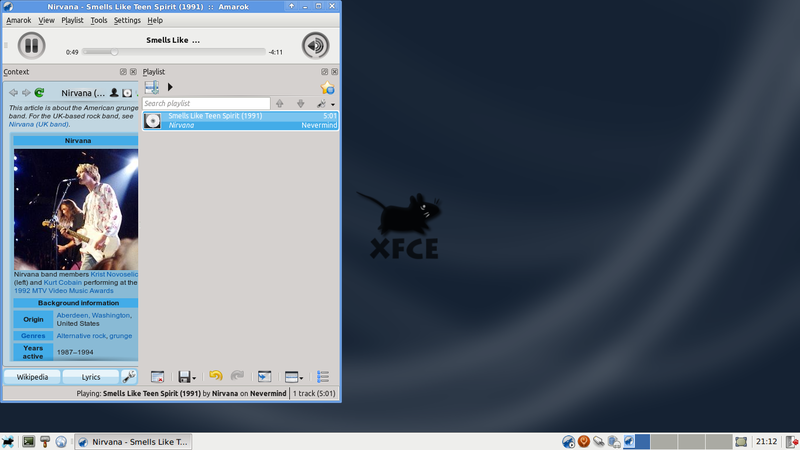
To launch Amarok faster, enable Launch KDE services on startup by going into → → and checking the option.
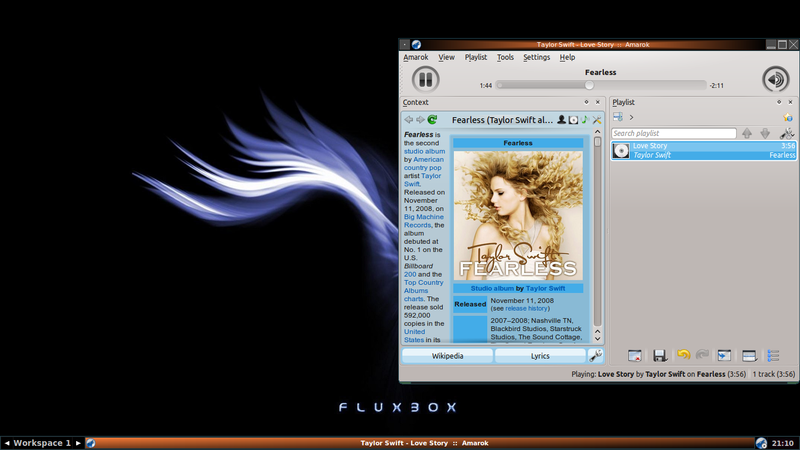
Warning
This pages needs screenshots for the Amarok 2.8 version
As you already know, a normal Windows install doesn't use KDE, so if you want to install Amarok, you can't just download the Amarok package. You must install a compatible compiler first. Here is described how to download, install and run Amarok in the Windows operating system.
If you run into any difficulties, please visit the Amarok on Windows wiki page where the latest links will be kept updated. Otherwise, use the latest at the following links:
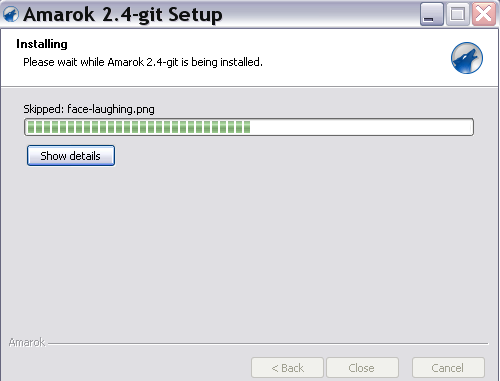
The installation is very simple, just run the downloaded .exe file.
Warning
If you want to update be sure to remove your current install.
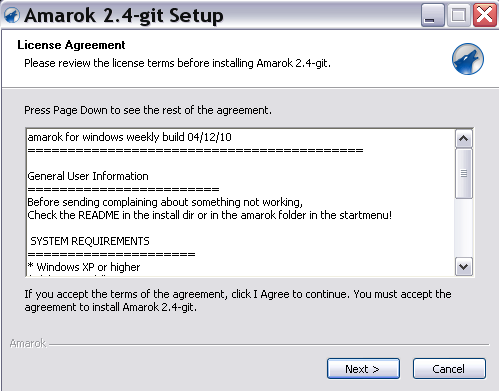
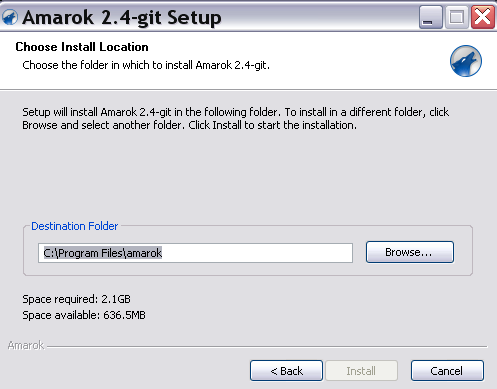
Second, choose the install location.
If you want to change the default location, select Browse... and choose a new location.
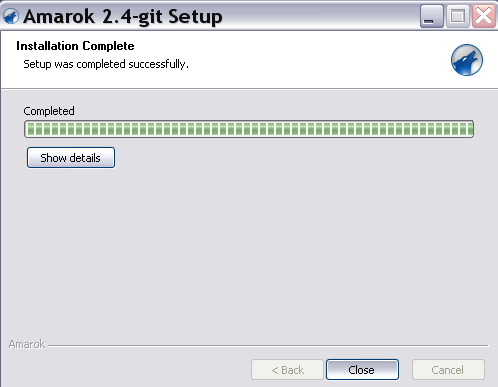
Warning
Current Macports 2.1.3 only ships an outdated Amarok 2.6.0 version
Amarok can be installed and used on the Mac® OS X.
To install Amarok on Mac® OS X, first one needs to install MacPorts from here. Once MacPorts is installed one needs to run the following command in the terminal:
sudo port install amarok
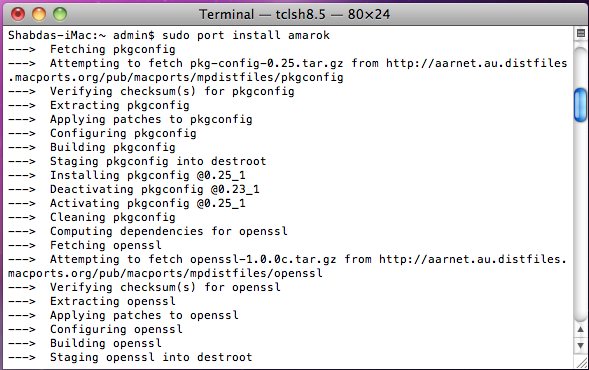
The port command will fetch all the dependencies, compile, build and install them. This process may take quite some time, four to five hours in a recent install.
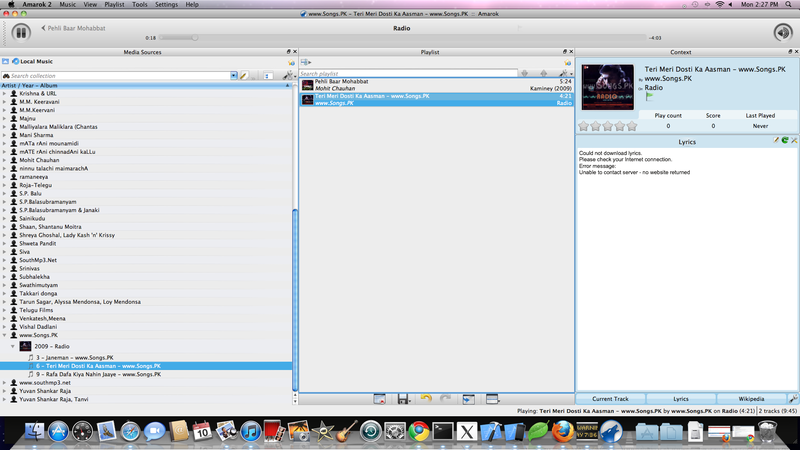
If you run into difficulties, there is a troubleshooting page here.