 Changing Transaction Settings
There are several options that change the appearance and behavior of the
Ledger view in terms of transactions. These settings are found by selecting
from the menu bar, and selecting the  ledger icon from the list on the left.
Most of the settings are self explanatory. For clarity, several of the settings are explained below.
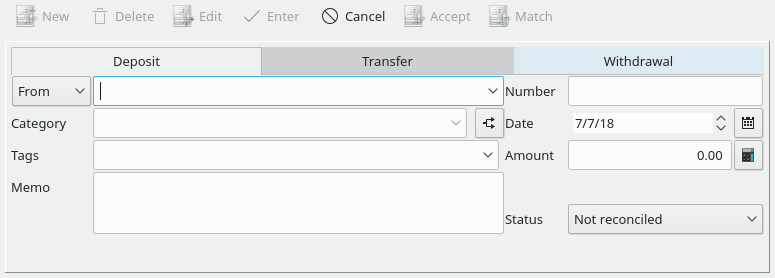
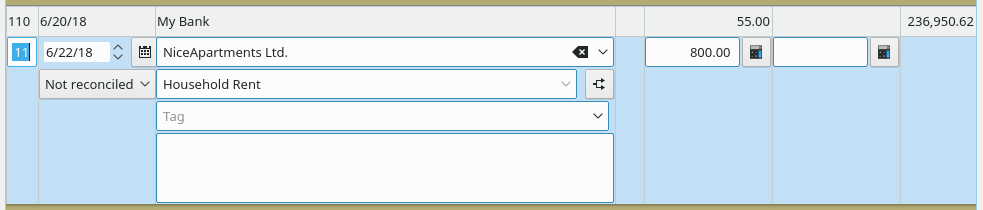
Show transaction form (under the Display tab) - toggle to hide the transaction form at the bottom of this screen. Transactions can still be entered directly into an empty line at the end of the transaction list, through an automatic compact entry area.
These images show what direct transaction entry looks like compared to the transaction form.
The transaction form
Transactions entered directly
Keep changes when selecting a different transaction/split - by selecting the next line in the transaction list or split editor, the changes are kept, instead of the default behavior where you have to push the green check mark to save changes.